
Creating an Ebook: Markdown to EPUB and Kindle
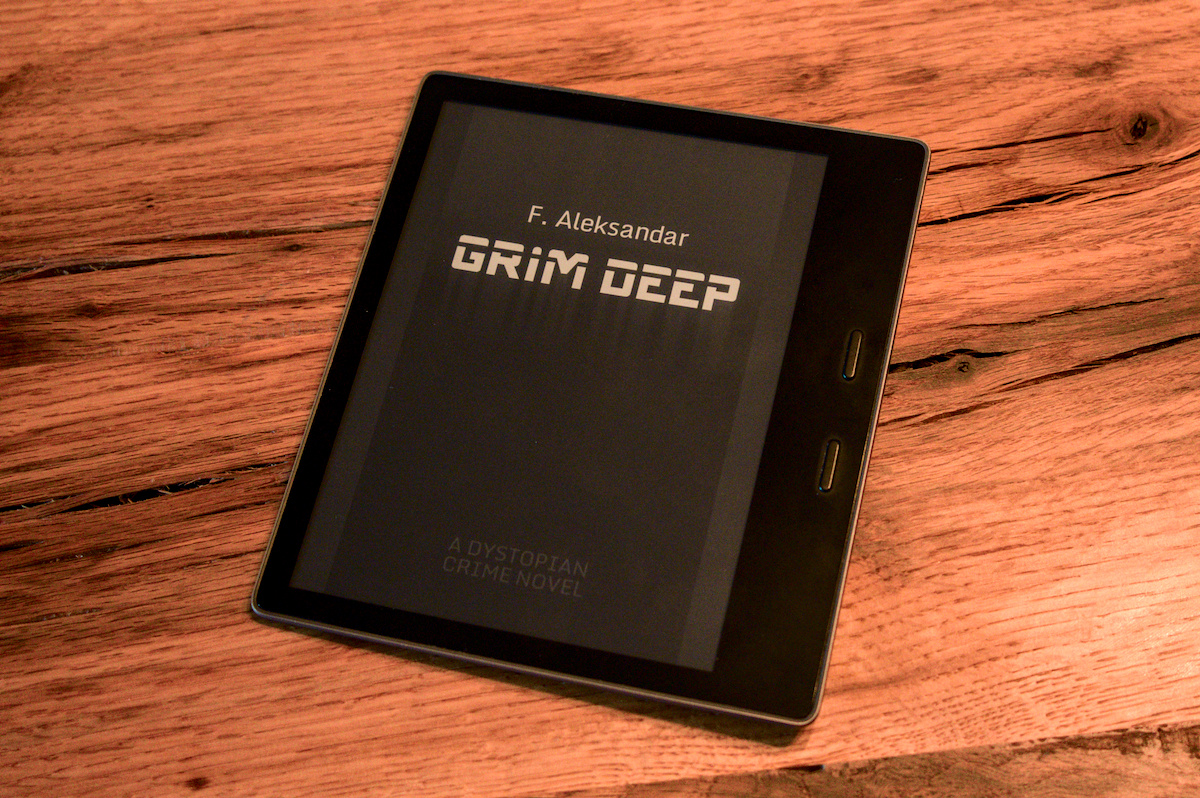
I have been working to edit my novel GRIM DEEP for a while now. And since it will be time to ship a few advance proofreading copies to people at some point, I decided to spent some time to work out my workflow of creating an EPUB file that people can then import to their Kindles for proof-reading — and which I can later use to publish the book on Amazon via KDP.
I have the manuscript of my book in a revision-controlled folder on my hard drive which includes a number of Markdown files (one file for each chapter). I wanted to turn these Markdown files into a single EPUB file and I knew that this can be accomplished with Pandoc. I also found a few guides — like this one and that one, for example — which explain some of the fundamentals on how to do this. But I quickly learned that, although a lot has been written about this topic — including a lot of the inevitable AI slop that seems to be preferred by search engines nowadays — the actual details of how to create and format the final EPUB file are hard to come by. And when doing layout, details are everything, of course.
Therefore, I present to you this guide that explains how I got my own Kindle-ready EPUB formatted from Markdown files. Some of this is specific to how I like to layout my book to my own tastes, but I hope that it will be nonetheless useful to your own efforts.
Organising Your Files
I keep all the files for the ebook version of the novel in a single folder. The individual chapters (plus pages for front and back matter) are numbered.
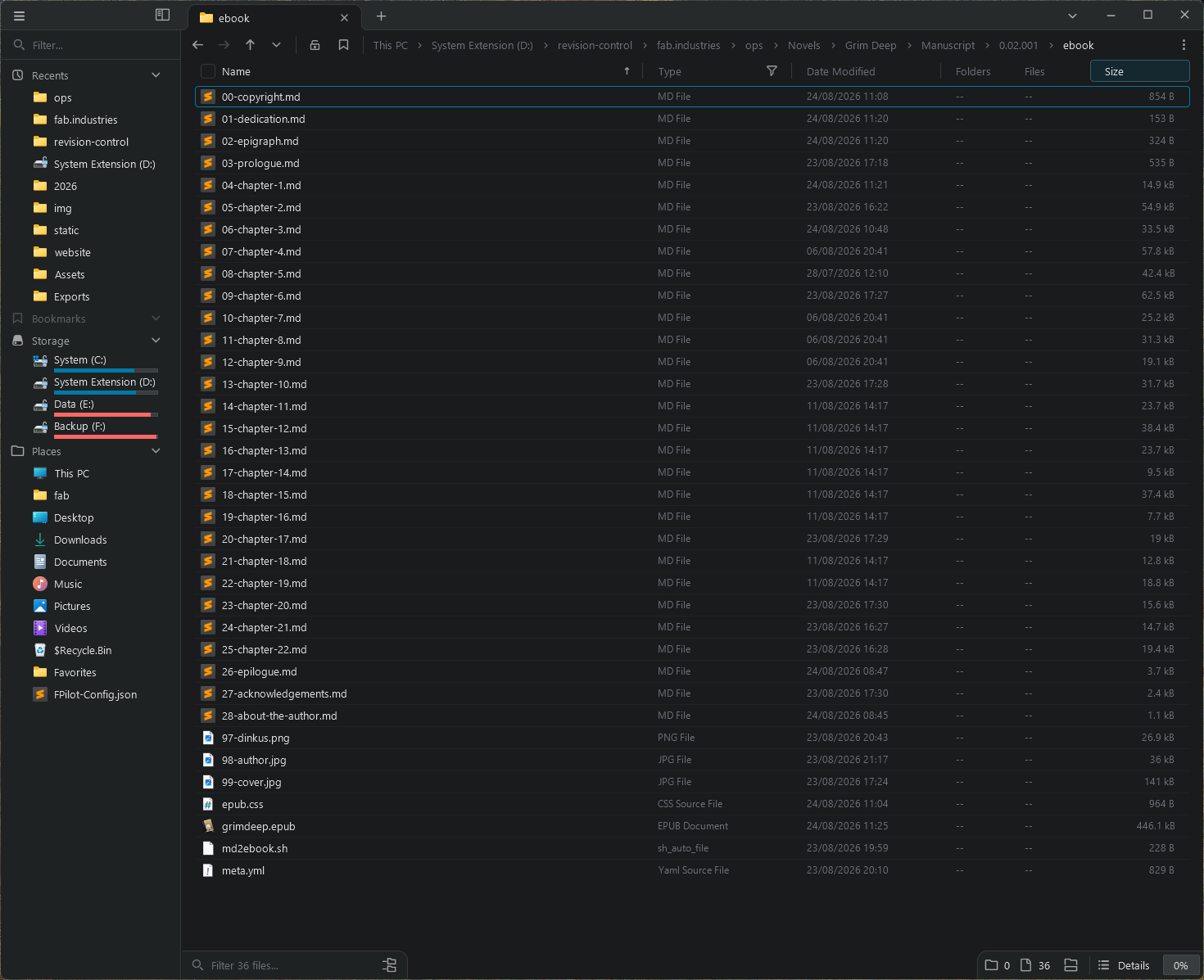
The files 00-copyright.md, 01-dedication.md and 02-epigraph.md is front matter for the book. Everything from 03-prologue.md to 26-epilogue.md are normal chapters. 27-acknowledgements.md and 28-about-the-author.md is back matter. Images I am using are numbered backwards from 99-cover.jpg, which is the cover file for the book.
The file grimdeep.epub is the finished EPUB file that gets generated at the end of the whole process I am describing here and I will go into epub.css and meta.yml in detail later; those files are used in that process. I will discuss md2ebook.sh as well, which is the Linux shell script I am using to execute the complex Pandoc command that will compile the book.
Here is what a typical .md manuscript file for a chapter looks like:
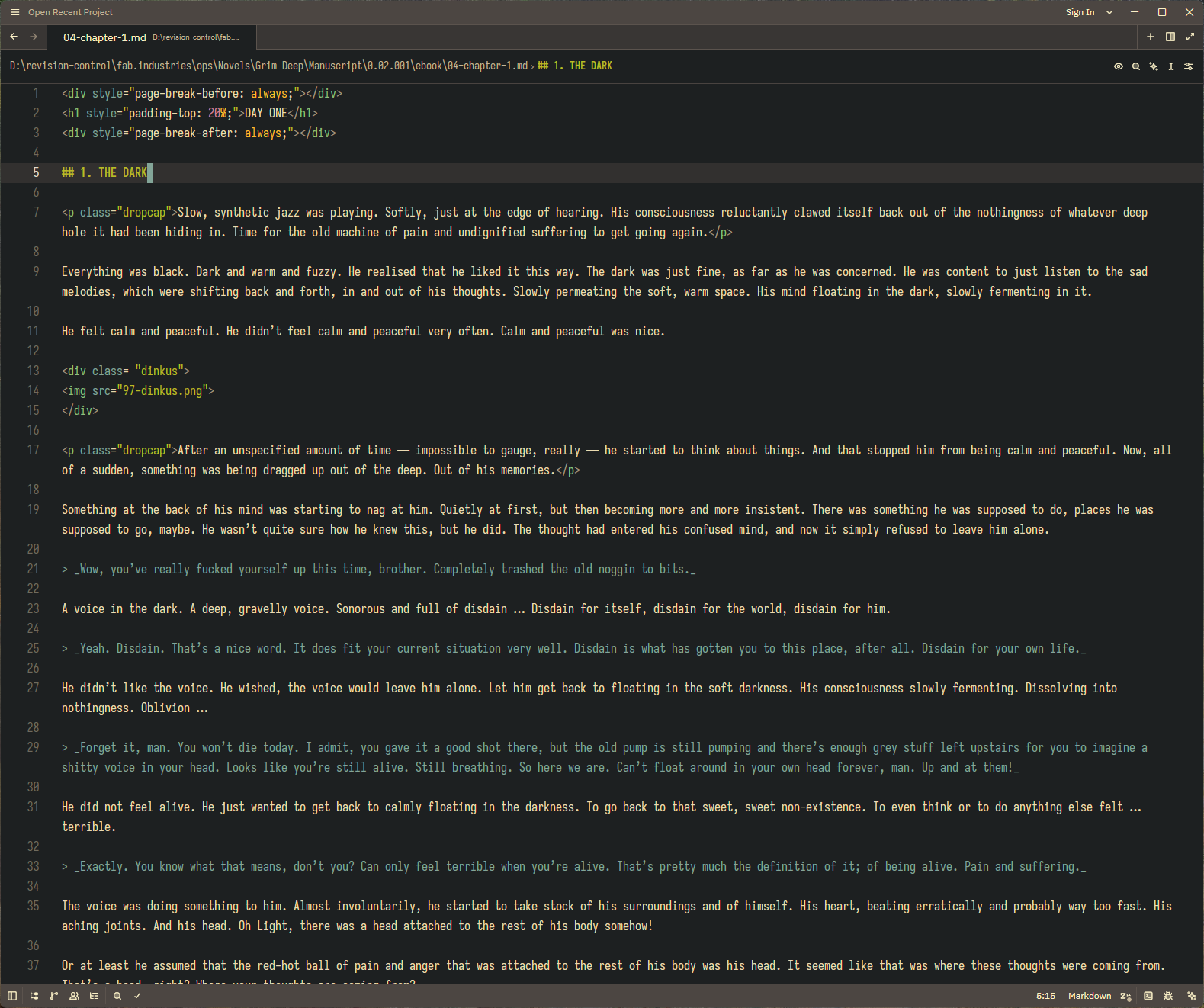
As you can see, it is mostly just plain Markdown. There are some HTML tags in there, but I’ll get to that later as well.
So what you want to do as you write your book is prepare a folder that has all chapters and font / back matter pages in separate Markdown files like this. Within these files, just use normal Markdown syntax and define chapter headings on heading level 1 like this: # Chapter Heading. My own book is divided into sections that correspond to days in the story, so I use # DAY NUMBER and ## CHAPTER HEADING — I am also capitalising these words, because I like the way that looks. If you have an additional chapter level like that and want the EPUB generated by Pandoc to reflect this in its page layout and the automatically generated table of contents page, which I think you would, you will want to use the Pandoc command line parameters --toc-depth=3 and --split-level=2 (more on these later).
Pandoc Configuration
With your manuscript folder structure in place, let’s look at what we need to do to feed this into Pandoc, so that it can create an EPUB file for us. First, we need a meta.yml file to define some metadata for our book. Mine looks like this:
---
title:
- type: main
  text: GRIM DEEP
- type: subtitle
  text: A dystopian crime novel
creator:
- role: author
  text: F. Aleksandar
language: en-GB
identifier:
- scheme: ISBN
  text:
date: 2026-08-23
publisher: FAB INDUSTRIES
rights: Copyright © 2017 - 2026 F. Aleksandar. All rights reserved.
description: |
  In the future, dry land on Earth has become uninhabitable. We now live under the sea, in domes of tungsten carbide, titanium and sapphire glass. While technology has progressed, humanity has not. We went to the depths of the oceans in search of refuge. All we found there was darkness. The ultimate darkness that was hidden in the human heart all along.
subject:
  - Fiction
  - Science Fiction
  - Apocalyptic & Post-Apocalyptic
cover-image: 99-cover.jpg
toc-title: TABLE OF CONTENTS
---
This is mostly self-explanatory. The ISBN field it empty because I am still working on my novel and it doesn’t have an ISBN yet. The subject categories are taken from the BISAC (Book Industry Standards and Communications) list, as that is what Amazon uses. The referenced cover image is the intended cover image for the book (1600 x 2560 pixels at 300 DPI) in the same folder. The variable toc-title defines a custom header for the generated table of contents page as I didn’t like the book title to get used there.
To create my ebook, I am executing Pandoc with the following command line parameters via the md2ebook.sh shell script:
#!/bin/bash
cd 0.02.001/ebook &&
pandoc --from gfm --to epub3 \
--metadata-file=meta.yml --epub-cover-image=99-cover.jpg \
--epub-title-page=false --toc --toc-depth=3 \
--split-level=2 --css=epub.css \
--output=../../grimdeep.epub *.md
The first line is optional, it is there simply to accommodate where the script is located in relation to my ebook folder (which contains the folder structure described above) on my Linux machine. In the directory listing from my Windows machine shown above, the script is in the same folder as everything else, but my Linux machine is set up differently. I could also execute the script from the same folder (as shown above) and in that case, I would delete that line. I left it in there to show what you would have to do if you execute the script from another location (like I do on Linux).
The pandoc command is where the magic happens:
- First, the flags
--from gfm --to epub3tell it to convert Markdown to an EPUB file - The flags
--metadata-file=meta.yml --epub-cover-image=99-cover.jpgpoint to the metadata and book cover files described above - The flag
--epub-title-page=falseinstructs Pandoc not to create a separate title page, as I feel for an ebook the initial cover image is enough - The flags
--toc --toc-depth=3tell Pandoc to create a table of contents (which is best practice for an ebook) and to adapt this to my specific requirements (the two levels of section and chapter headings mentioned above) - The flag
--split-level=2makes sure that page layout adheres to this as well and creates new chapters at the<h2>/##level instead of only at the sections at<h1>/# - The flag
--css=epub.cssoverrides Pandoc’s custom EPUB styling (see Custom CSS below) and points to my own CSS file in the manuscript folder - And finally,
--output=../../grimdeep.epub *.mdtells Pandoc what the output file will be and that it should use all.mdfiles in the current folder as an input
Running this should generate the file grimdeep.epub two folders above the location of the script. If you want to have the finished EPUB in the same folder as that shell script — as in the directory listing shown above — you would modify the last flag to --output=grimdeep.epub.
As you might have noticed, I have that epub.css file set up to influence how my EPUB output is styled. Since that does a lot of heavy lifting too, I will explain it in detail in the next section of this guide.
Custom CSS
Pandoc has its own CSS style to generate EPUB files. You can reference it here. But since I have some requirements and style preferences of my own, including drop caps, I chose to overwrite this with my own epub.css:
body {
    font-family: Georgia,"Times New Roman",Times;
    margin: 5%; text-align: justify; font-size: medium;
}
code { font-family: monospace; }
h1 { text-align: center; font-size: 3em; }
h2 { text-align: center; font-size: 3em; }
ol.toc li { list-style-type: none; margin: 0; padding: 0; }
p {
    text-align: justify; text-indent: 1em;
    margin: 0; widows: 2; orphans: 2;
}
p.dropcap { text-indent: 0; }
p.dropcap::first-letter {
    float: left; font-size: 4em; line-height: 1.1em;
    padding-right: 0.05em; font-weight: bold;
    margin-top: -0.15em;
}
blockquote { margin: 1em 0 1em 2em; text-indent: 0; }
blockquote p { text-indent: 0; }
code { text-indent: 0; }
pre { margin: 1em 0 1em 2em; text-indent: 0; }
pre code { text-indent: 0; }
code p { text-indent: 0; }
pre p { text-indent: 0; }
blockquote + p { text-indent: 0; }
code + p { text-indent: 0; }
pre + p { text-indent: 0; }
pre code + p { text-indent: 0; }
.dinkus { text-align: center; margin: 2em; }
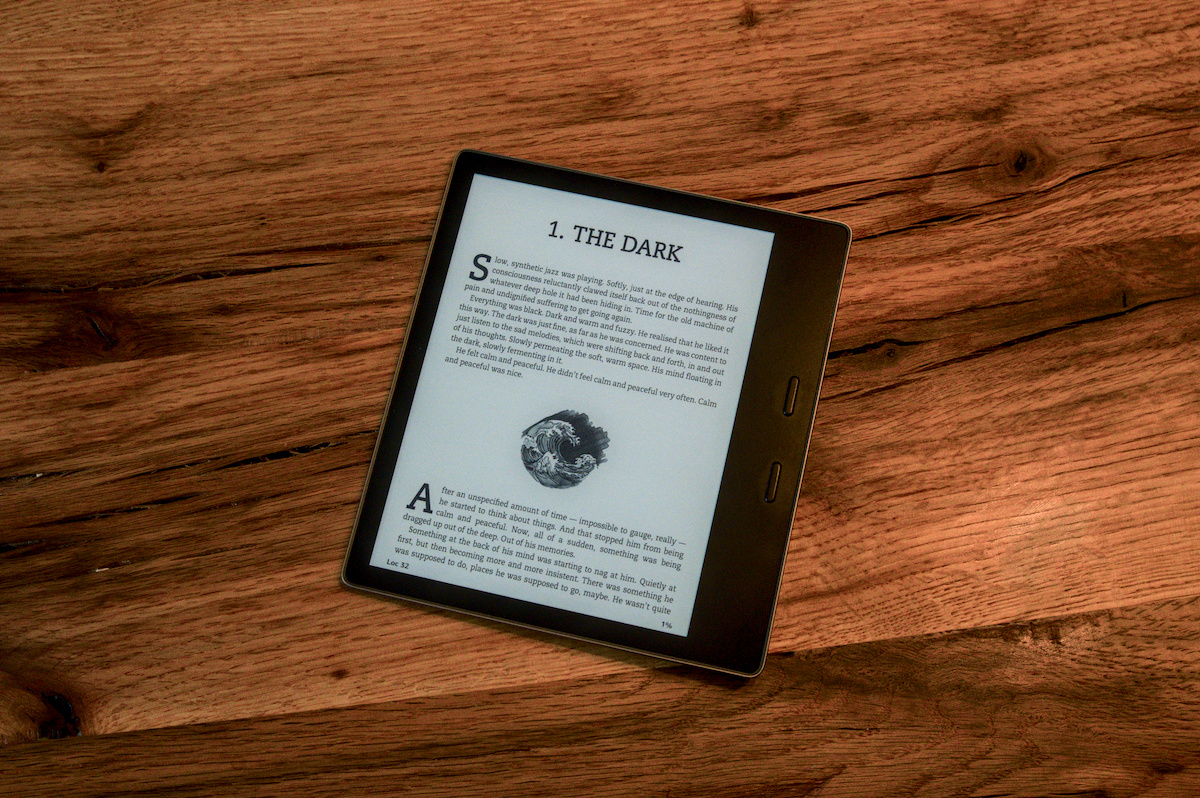
I will explain the most important parts of this layout in the following section. Here is an example of what two typical pages of my novel look like in the resulting EPUB version (in this case displayed on my Kindle):

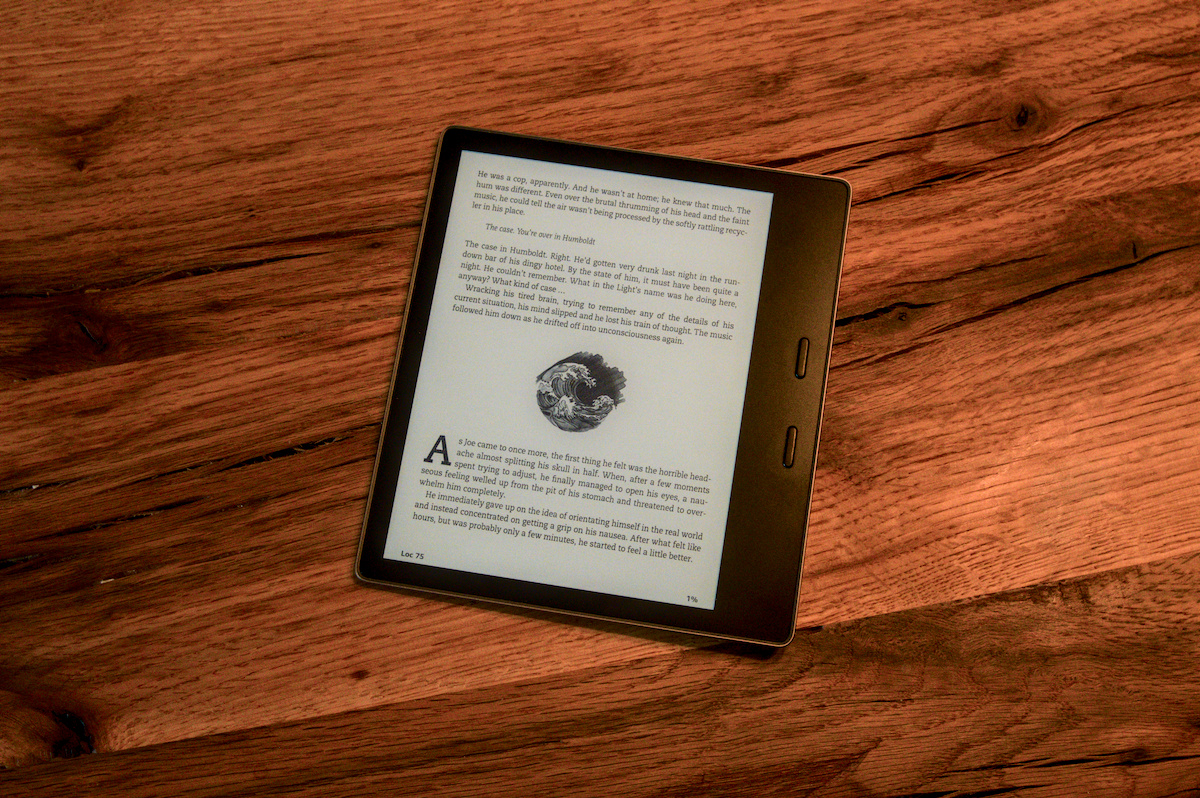
As you can see, the default paragraph style is indented and there is no additional spacing between the paragraphs. The text ist justified. This is accomplished by the main paragraph style:
p { text-align: justify; text-indent: 1em; margin: 0; widows: 2; orphans: 2;}
Blockquote paragraphs have their own styling and the next pararaph after a blockquote is not indented:
blockquote { margin: 1em 0 1em 2em; text-indent: 0; }
blockquote p { text-indent: 0; }
The first paragraph in a chapter or after a dinkus (I use my own image for this, more on that later) uses a dropcap. In the Markdown file, these paragraphs are wrapped in <p class="dropcap"> and </p> tags, which get the following styling:
p.dropcap::first-letter {
    float: left; font-size: 4em; line-height: 1.1em;
    padding-right: 0.05em; font-weight: bold;
    margin-top: -0.15em;
}
I use <code> blocks in the novel to represent text that is displayed on device screens. In the Markdown files, these are wrapped in ``` tags and they are displayed in the EPUB with their own styling and using a monospaced font:
code { font-family: monospace; }
pre { margin: 1em 0 1em 2em; text-indent: 0; }
To make sure that blockquotes, code blocks and paragraphs following these don’t get the default indentation applied, there are loads of statements like this throughout the CSS:
p.dropcap { text-indent: 0; }
blockquote p { text-indent: 0; }
code { text-indent: 0; }
pre code { text-indent: 0; }
code p { text-indent: 0; }
pre p { text-indent: 0; }
blockquote + p { text-indent: 0; }
code + p { text-indent: 0; }
pre + p { text-indent: 0; }
pre code + p { text-indent: 0; }
In the table of contents page generated by Pandoc, I am also supressing any bullets or numbering for those lines, as I have manually numbered my chapters – you can see this in the screenshot of the Markdown file of the first chapter above. Supressing these elements is accomplished by the following line:
ol.toc li { list-style-type: none; margin: 0; padding: 0; }
Finally, my custom CSS includes a style for my custom dinkus image:
.dinkus { text-align: center; margin: 2em; }
These images are included in the Markdown files at the appropriate locations with the following HTML tags:
<div class= "dinkus">
<img src="97-dinkus.png">
</div>
Here’s what these dinkus images look like in the finished EPUB:
Fine Tuning
The CSS file described above takes care of paragraph styles, drop caps, custom dinkus images and the table of contents generated by Pandoc. But there are a few pages that are special. Both the files 01-dedication.md and 02-epigraph.md do not have headings. But I still want these to be separate pages (preceded by page breaks). And since I want the dedication and the epigraph for the book to pop, I also want these elements to be displayed in a bigger font. I also decided that I want to offset them from the top of the page somewhat for a professional look.
This is why those files do not contain Markdown, but HTML instead. Here are the contents of 01-dedication.md and the result:
<div style="page-break-before: always;"></div>

<p style= "text-align: center; font-size: 2em; padding-top: 20%; text-indent: 0;"> <em>For Katy</em></p>

The file 02-epigraph.md looks like this:
<div style="page-break-before: always;"></div>

<p style= "text-align: center; font-size: 2em; padding-top: 20%; text-indent: 0;"> “There’ll be no more heroes. They’ll be reduced to zero.�</p><br>

<p style= "text-align: center; font-size: 2em; text-indent: 0;"> — Van Morrison, <em>Rough God Goes Riding</em></p>
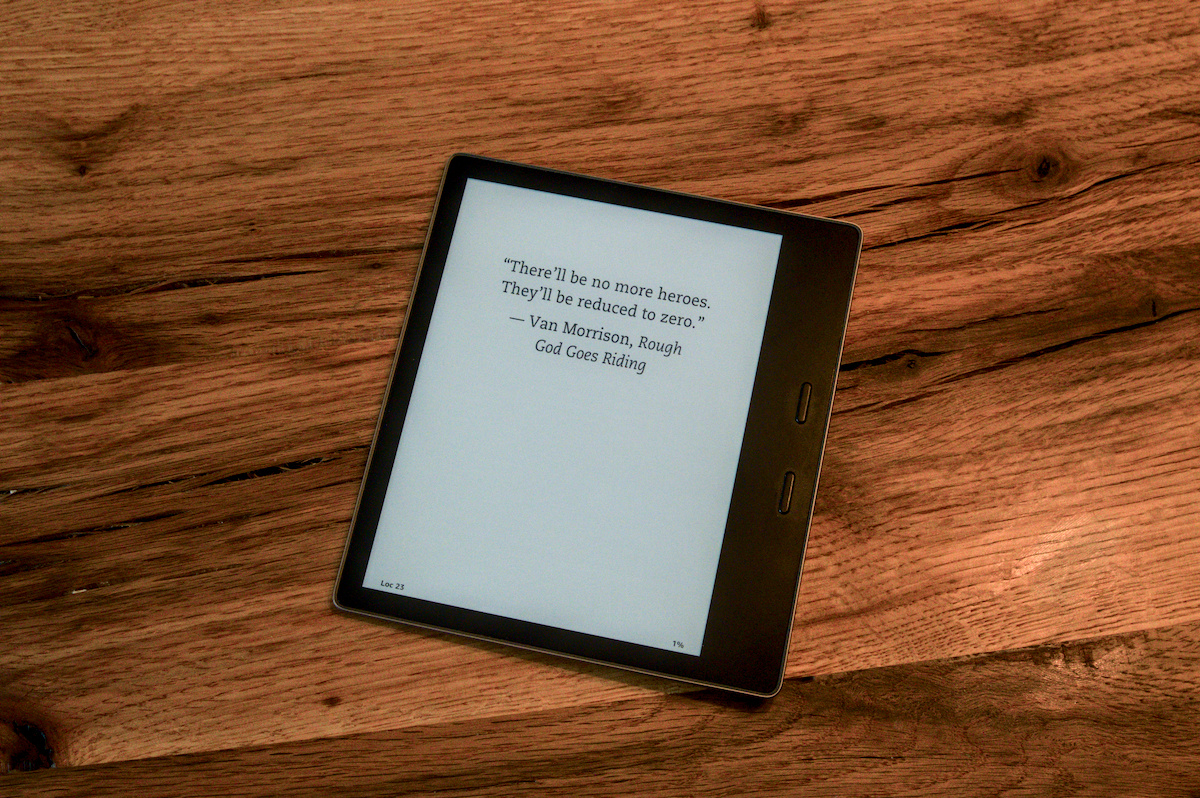
The paragraph stylings should be more or less self-explanatory. The special line <div style="page-break-before: always;"></div> will force a page break even without including an <h1> / # or <h2> / ## heading in the file. I use a similar combination to put my section markers like DAY ONE etc. on their own pages:
<div style="page-break-before: always;"></div>
<h1 style="padding-top: 20%;">DAY ONE</h1>
<div style="page-break-after: always;"></div>
Additionally, the copyright page (which has its own heading) uses HTML to centre all elements and customise the paragraphs:
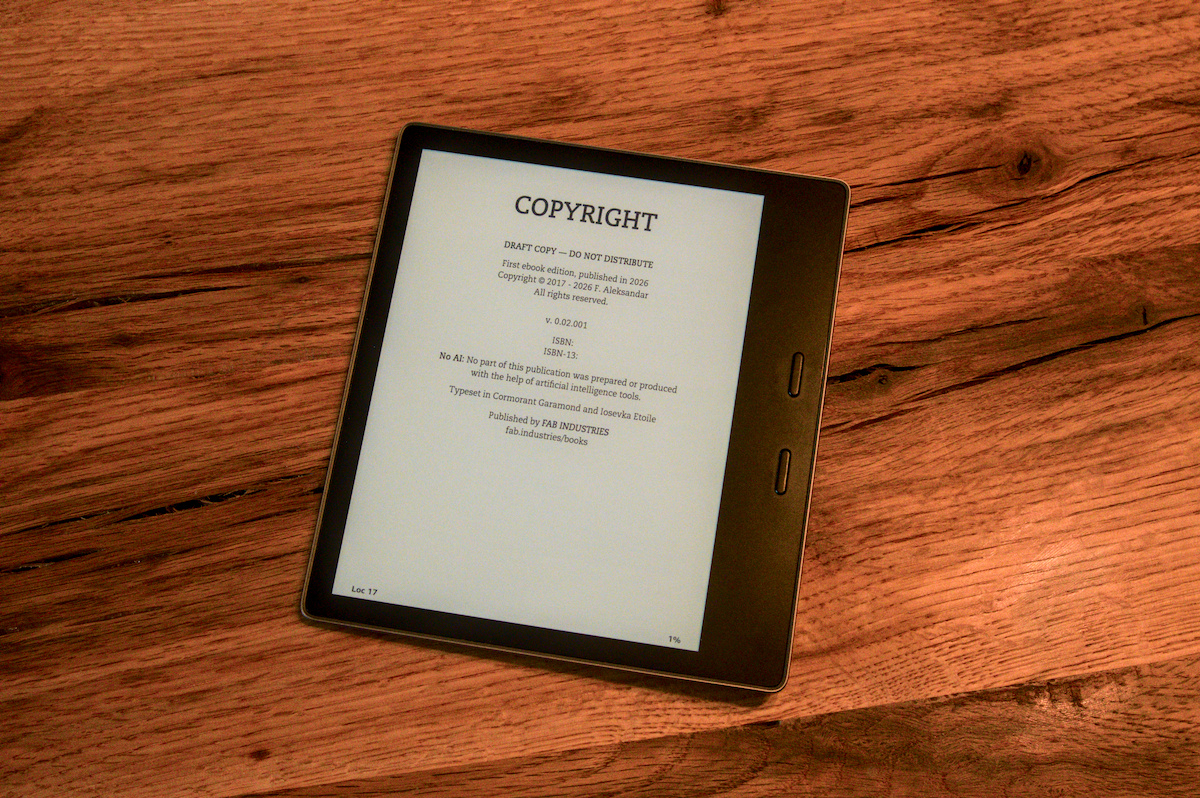
<p style= "text-align: center; text-indent: 0;"><strong>DRAFT COPY — DO NOT DISTRIBUTE</strong></p><br>

<p style= "text-align: center; text-indent: 0;">
First ebook edition, published in 2026<br>
Copyright © 2017 - 2026 F. Aleksandar<br>
All rights reserved.
</p><br>

<p style= "text-align: center; text-indent: 0;">v. 0.02.001</p><br>

<p style= "text-align: center; text-indent: 0;">
ISBN:<br>
ISBN-13:
</p><br>

<p style= "text-align: center; text-indent: 0;"><strong>No AI:</strong> No part of this publication was prepared or produced with the help of artificial intelligence tools.</p><br>

<p style= "text-align: center; text-indent: 0;">Typeset in Cormorant Garamond and Iosevka Etoile</p><br>

<p style= "text-align: center; text-indent: 0;">
Published by <strong><em>FAB INDUSTRIES</em></strong><br>
fab.industries/books
</p>
Ready for Prime Time
And that’s it. This is how I used Pandoc to compile a bunch of Markdown chapters into an EPUB version of my novel — with a number of custom styling elements. I am quite pleased with the result. I rivals the output from a number of professional publishers I’ve seen on the Kindle store.
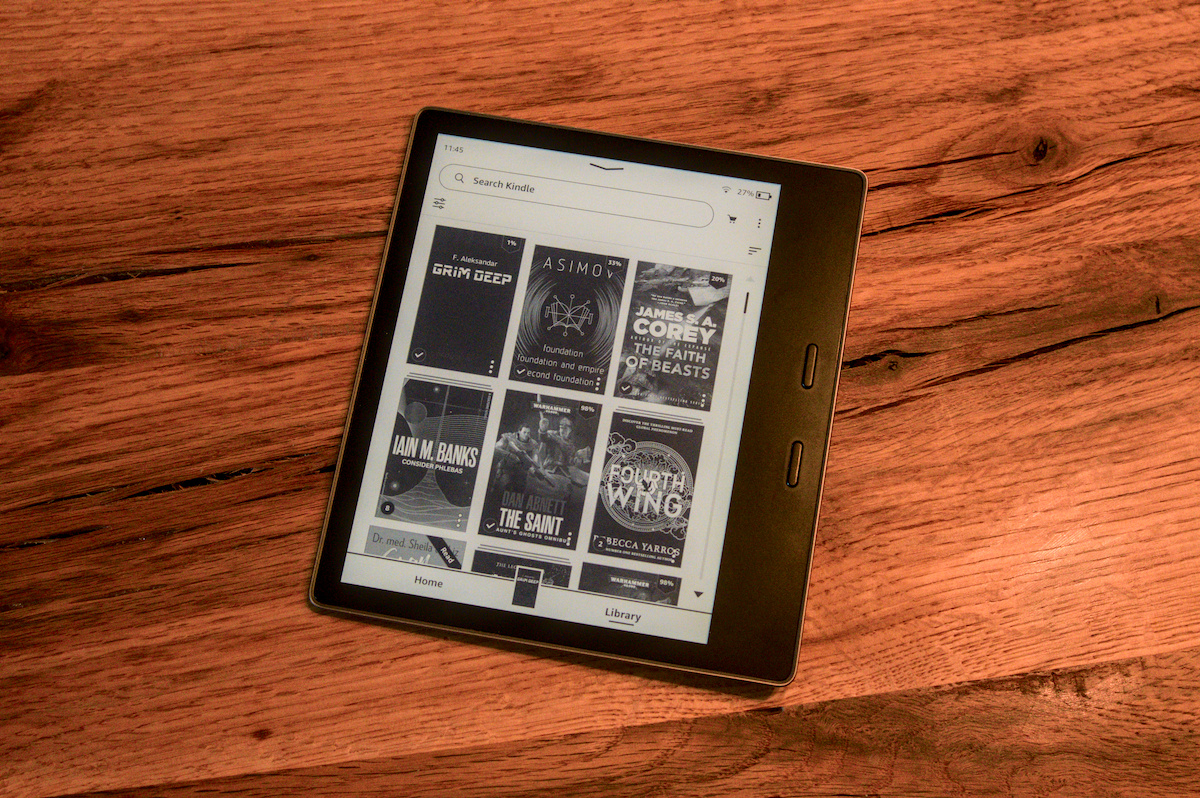
Now I only need to finish editing my novel and I can finally publish and sell it. In the meantime, I hope this guide was some help to you. If you have questions about this workflow, feel free to reach out via the email address provided below.